
So you followed the rebirth tutorial on how to pull, compile, and run the test server and client. You are now running about on your your test server. Congrats you got the map editor open, yes, it's the damn game client.
If you did it previously and want to open it again: open Rebirth_Git\rebirth\ and click .start.bat
Now select option 1.
Wait for everything to boot up and type in that all important username and password and get back in your development shard.
So now you're running around in the test server.
type /mmm into chat
Something like this should pop up:
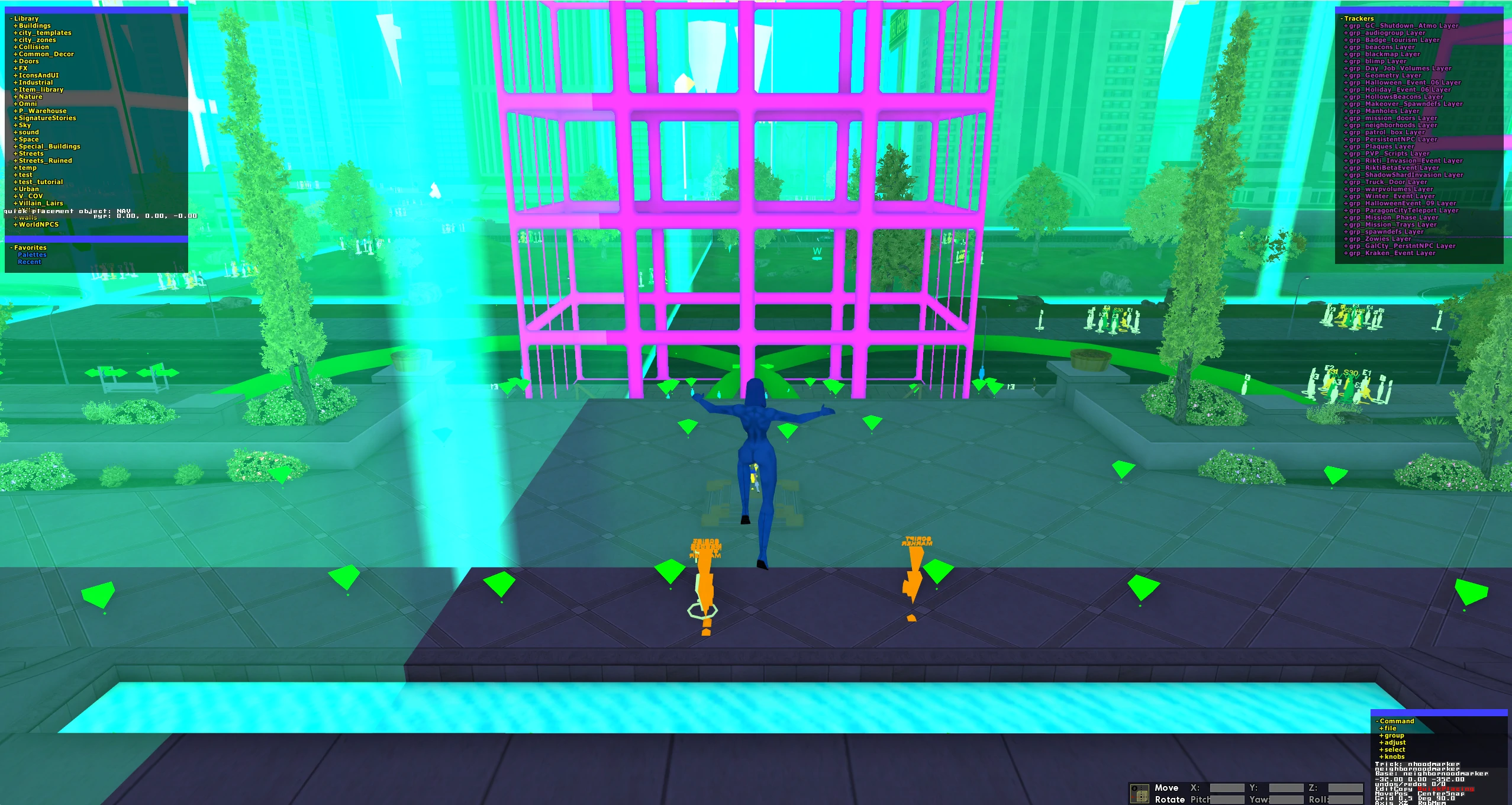 Daunting
yes? To exit hit the "e" key you'll flee back to the safety of the
default COH UI.
Daunting
yes? To exit hit the "e" key you'll flee back to the safety of the
default COH UI.
Now important thing here is any edits you make on this won't be saved until you use the save command. So feel free to get handsy with a map, so long as you don't save simply restarting will reset all you've done.
Camera Controls:
Hotkeys:
Now lets look at the windows.
Upper Left window: This is where your prefabs live. You can browse the various groups in there to find things to drop into your map.
Upper Right Window: This is a list of all groups here. Objects in a map live inside nested groups. This map making program lives and dies by the group
Lower Left Window: Only visible when you have something selected. Object/group properties are shown here. Be aware that many object properties can only be set at group level, such as tree tinting.
Lower Right Window: This is equivalent of you top bar menu, saving is found in here, shortcut keys are listed here. Browse through the items here to learn some useful hotkeys.
Want to load a specific map, you got two options: navigate there, or load it up with the /startmission command.
/startmission looks something like this (again, typed into local chat):
/startmission LP_P_Helions_Mission1
"maps/missions/Unique/Summer_Event_2012/Summer_Event_2012.txt"
Yes, that's a single line. Also it's a line that was given during speedster's tutorial session, so if there's typos blame speedster..
Looking for where the map you want lives? Go to Rebirth_Git\rebirth-data\bin\data as you may imagine, "maps" is the folder you want to start looking. Based on the format of the start mission command I have provided above, this should be enough for you to get dangerous. You can copy an existing map to give yourself a base to work off of.
Importance of a text editor:
As you might have noticed in diving into the map files, you will notice the maps are .txt files, plain text files. Yes, you can edit them with a text editor. I suggest notepad++. Sublime is also pretty darn legit if you figure it out.
Various things like particle effects can be edited by text editor.
And yes, they update in real time in the map as you do so. [todo: insert
dealy about fishing out a particle effect and editing that stuff up]
Modifying Existing Library Groups:
So if you need to modify an existing library object on the map you don't want to ungroup it. You want to create a Container Group.
Now this is the part where you tell me to go pound salt because that stupid message comes up all the time and it doesn't mean anything.
But technique is everything. All you need to do is something incredibly simple but incredibly unintuitive. You need to select the object and expand it. Then select something inside of that object. Then hit the G key. That tells the map editor that you want to create a Container Group so that you can freely edit the library objects contents on this specific map.
Now for some additional warnings about what you loose by using the wrong
technique and ungrouping: You don't want to ungroup the parent object
because those trays, mini-maps, and ambient lighting are all properties of
the parent that get lot if you do that. It's what caused my all of the
issue above that I showed.